Tuesday, 7 April 2026

MULTIMEDIA


AUDIO >>>  

IMAGEN >>>

VÍDEO >>> 


Python

Python >>> Lenguaje de programación >>> https://www.python.org
Thonny >>> Entorno de programación que ya tiene incluido Python >>> https://thonny.org


Cuando ejecutamos Thonny, el programa se divide en dos ventanas:
- El editor de código (parte superior)
- El intérprete de Python, consola o shell (parte inferior). Aquí podremos introducir instrucciones y ver el resultado que produce su ejecución.

Si escribimos help> seguido de una de las palabras reservadas obtendremos información sobre estos comandos.
Características importantes:
- Sensible a mayúsculas y minúsculas
- Bloques de código: son conjuntos de instrucciones que terminan siempre con dos puntos:
- Identación: es una sangría obligatoria dentro de las instrucciones de un mismo bloque
- Comentarios: se escriben tras el símbolo # si es una sola línea o triples comillas para varias líneas '''

Primeros pasos con Python:
Vamos a utilizar a usar Python desde el intérprete como si se tratase de una calculadora inteligente capaz de hacer cuentas y cálculos de forma rápida y precisa.


Vamos a seguir dándole algunas órdenes más a Python, que aunque nos puedan parecer un poco extrañas, ya veréis como más tarde resultarán útiles


Vamos a continuar dándole órdenes al intérprete de Python para conocer las respuestas que nos devuelve.


Hemos usado....


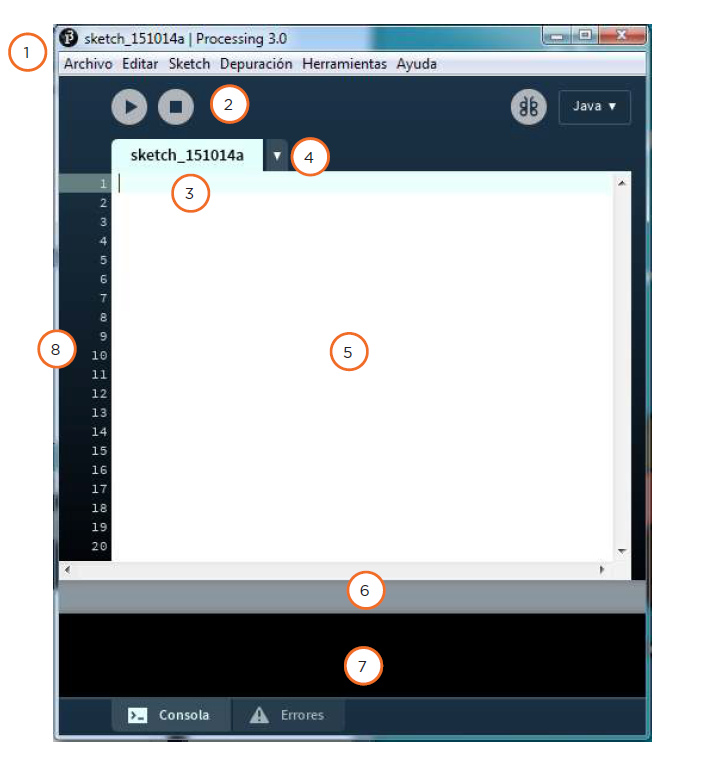
PROCESSING

 >>> you can download it here

Processing is an open-source programming language and integrated development environment based on Java, used as a medium for teaching and creating multimedia and interactive digital design projects. It is developed by artists and designers as an alternative tool to proprietary software.

Processing es un lenguaje de programación y entorno de desarrollo integrado de código abierto basado en Java, que sirve como medio para la enseñanza y producción de proyectos multimedia e interactivos de diseño digital. Es desarrollado por artistas y diseñadores como una herramienta alternativa al software propietario. 

PIXELS AND COLORS

Computer screens are made up of a matrix of dots that we call PIXELS. The more pixels a screen or digital image has, the higher its resolution. Each pixel can have a different color, which is a combination of three components: RED (R), GREEN (G), and BLUE (B). This is the RGB code, which expresses each component as a number between 0 and 255.

Thus, 0,0,0 is black and 255,255,255 is white.


You can visit this webpage to get the RGB code of any color:  https://htmlcolorcodes.com/

COORDINATES

The coordinate origin (0,0) on a computer screen is the top-left corner. Each pixel has two coordinates (x, y) to indicate its position on the screen. 

The x coordinate (width) is the horizontal distance from the left edge of the screen, and

The y coordinate (height) is the vertical distance from the top edge of the screen.


WINDOW SIZE

You can define the size of the window where you run the program with the command size(x,y);

x = width    y=height


URL to download the program: https://processing.org/

You can download processing-4.3.3. for windows x64 here (you dont need to install anything only run the exe file)


PRACTICES
P2-Geometric Shapes 1
P3-House
P4-Olympic Rings
P5-Hello Mouse
P6-Advanced Hello Mouse
P7-Traffic Lights
P8-Tunk

**P 1: Hello Word - Drawing a dot and a line - Dibujar un punto y una línea

To draw a dot use the sentence: point (x,y);

To draw a line use: line (x1,y1,x2,y2);

**P2: Geometric shapes (photocopy)

**P3: Geometric shapes (2) - Dibujar formas geométricas simples
Reproduce exactly this model


P4: Drawing a house
You can follow Amalia's model, but it´s better you design yours!


P5: Olympic Rings

Help:

- The stroke weight refers to the edge of the shape. Use at least 5 >> strokeWeight(5);
- Transparent shapes >> fill(R,G,B,0); >> the last number is the opacity 0=transparent
- White Backgound >> background(255);


✧ ➷༄*ੈ✩ ✧ ➷ೃ༄*ੈ✩ ✧ ➷ೃ༄*ੈ✩

VARIABLES
A variable is a memory address where data can be stored. The use of variables involves three actions:
1.-Defining the variable (int, float, boolean, char, string)
2.-Assigning it a value
3.-Using the variable

Una variable es una dirección de memoria donde se puede guardar un dato. El uso de variables implica tres acciones:
1. Definir la variable (int, float, boolean, char, string)
2. Asignarle un valor
3. Utilizar la variable

FUNCTIONS
A function is a set of instructions grouped under a single name. There are functions defined in the development environment, such as draw() and setup(), as well as others that can be defined by the user. To execute a function, you need to use the following syntax:

Una función es un conjunto de instrucciones agrupadas bajo un mismo nombre. Existen funciones definidas en el entorno de desarrollo como draw() y setup(), y otras que puede definir el usuario. Para que se ejecute una función hay que usar la sintaxis:
void setup (){
código que se va a ejecutar
}

P6: Create a program to control the mouse - Hello Mouse!
Elaborar un programa para controlar el ratón - Hola Mouse!

BUCLES Y CONDICIONALES
Cuando el programa tenga que tomar una decisión utilizaremos la sentencia condicional if / else que indicarán las instrucciones que se ejecutarán si se cumple o no una condición. Se utilizarán los signos =>< para establecer esas condiciones.

if (nombre ==5){
//instrucciones que se ejecutarán si se cumple la función
}
else{
//insrucciones que se ejecutarán si no se cumple la función
}
 
Para repetir una o más instrucciones un número determinado de veces utilizaremos la sentencia for o while ...

for (byte i=0; i<10 ; i=i+1){
//instrucciones a repetir
}
  *********************
while (boton==0);{
//instrucciones a repetir
}

P7: Advanced Hello Mouse - the color is changing!
Hola Mouse Avanzado - el color del trazo va cambiando de color

P8: TRAFFIC LIGHTS - SEMÁFORO


Para dibujar este semáforo copiamos el siguiente código:


void setup() {
  size (400,400);                                        // Creamos una ventana de 400x400 pixeles
  rect(120,20,120,360);                             // Dibujamos un rectángulo
  triangle(20,20,120,20,120,120);             // Triángulo  en la parte superior izquierda
  triangle(240,20,340,20,240,120);           // Triángulo  en la parte superior derecha
  triangle(20,140,120,140,120,240);        // Triángulo  en la parte central izquierda
  triangle(240,140,340,140,240,240);      // Triángulo  en la parte central derecha
  triangle(20,260,120,260,120,350);        // Triángulo  en la parte inferior izquierda
  triangle(240,260,340,260,240,350);      // Triángulo  en la parte inferior derecha
  fill(0,0,0);                                                 // Ponemos el relleno del fondo en negro
  ellipse (180,80,100,100);                        // Dibujamos el círculo superior
  ellipse (180,200,100,100);                      // Dibujamos el círculo central
  ellipse (180,320,100,100);                      // Dibujamos el círculo inferior
}

A continuación programamos el siguiente código para que vaya encendiéndose de cada color:

* No olvidar definir la variable time al principio para poner el tiempo a cero:


Y finalmente definimos el dibujo para cada color:


P9: DEPÓSITO

El depósito debe simular que se llena con la letra "a" y se vacía con la tecla "z"